For clients that pay by direct debit, you can select Direct Debit from the Payment Method options on their client record. When you do this, two more boxes will appear, where you can set the DD Reference (maximum 18 characters) and DD amount. These will then be added to the invoice for direct debit clients if you set-up your invoice template to include the direct debit tokens.
Steps to Set a client’s payment method as Direct Debit
Step 1 - Open the client record.
Step 2 - Select the details tab.
Step 3 - Scroll down to the Payment Method field and select Direct Debit.

TIP: It is also useful to set a flag for direct debit customers, so that you can easily find them in searches. You can find more details on setting up Company flags here.
Direct Debit report
The report “Direct Debit List” allows you to print or export a list of any customers who are marked as direct debit and have been invoiced in the month of your choosing.
Step 1 - Select Reports on the top navigation bar.
Step 2 - Under Financial > Select Direct Debit List.

TIP: if you also set a flag for your Direct Debit clients as described above, you will be able to easily find them on the Clients page.
Modifying the invoice template for Direct Debit clients.
Step 1 - Go to the main settings page.
Step 2 - Under Settings > Select Internationalise.
Step 3 - Clicking on the Invoice tab of Internationalise allows you to enter custom text in the bottom text field. This text will appear on invoices for your direct debit customers.

Step 3 - Go to the main settings page.
Step 4 - Under Admin > Select Document Templates.
Step 5 - Select System Documents > Select Invoice template.
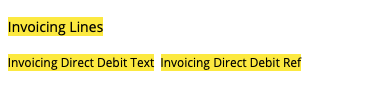
Step 6 - On the left, you will see the 'tokens', the tokens you may want to add to the invoice template are the ‘Direct Debit Text’ and optionally also the ‘Direct Debit Ref’ tokens.

Step 7 - In the main body of the invoice template, click the area where you want to add the tokens (for example, above or below the invoicing lines) and then click on the token in the sidebar that you want to add to the invoice template.
Step 8 - Click Save to save the template.
NOTE: This extra information will only display on invoices for clients who are set-up with “Direct Debit” as their payment method in MagManager.

